Dit artikel is in het Engels geschreven. Hulp nodig bij dit onderwerp? Neem contact op.
Microsoft Teams is based on user policies, which makes it hard to target specific platforms where you might want to disable specific features. When Ahmed Hamed (LinkedIn) and I started to investigate how to accomplish this, we were unable to find any good documentation or blogs on how to do it.
Our end goal was to accomplish the following:
- Disable all resource-intensive features such as audio/video calls, meetings and screen sharing on the Citrix environment
- Allow users to still use all other features in Citrix, like chat and sharing files
- Allow users to use all features outside of Citrix
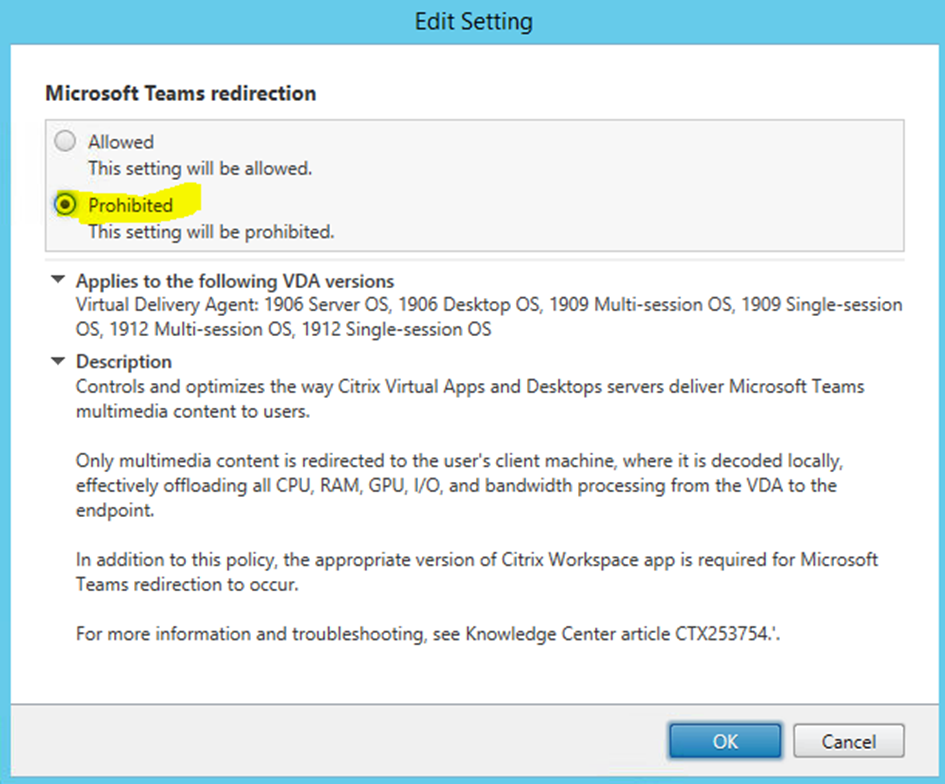
To accomplish the above you need to set the following settings in Citrix Policy:
To perform the other steps, we used the new TeamsVdiPolicy PowerShell module
docs.microsoft.com – Teams for VDI: disable audio and video settings
1. Install the newest Microsoft Teams module
Install-Module -Name MicrosoftTeams -Force -AllowClobberCheck if the VDI PowerShell commands are present by running:
Get-Command -Noun *VDI*If the commands are missing, run the following PowerShell command:
Update-Module -Name MicrosoftTeams -AllowPrerelease
2. Connect to your Teams environment
Connect-MicrosoftTeams3. Create a CsTeamsVdiPolicy to disable all audio and video inside your VDI environment
New-CsTeamsVdiPolicy -Identity DisableCallsAndMeetingsTrue -DisableCallsAndMeetings $true -DisableAudioVideoInCallsAndMeetings $falseAfter this, a policy called DisableCallsAndMeetingsTrue is created with the setting DisableCallsAndMeetings set to true (the default is false).
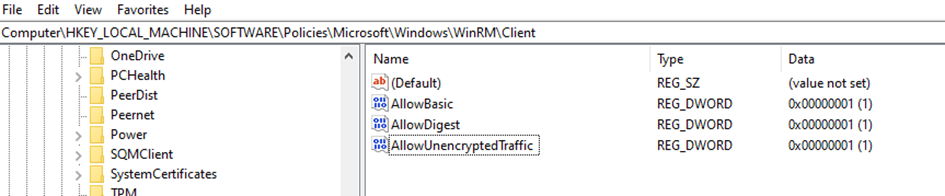
Side note: if you get the error message "Connecting to remote server api.interfaces.records.teams.microsoft.com failed with the following error message: The WinRM client cannot process the request. Basic authentication is currently disabled in the client configuration.", you need to change some registry keys and set the value to 1:
4. Check the created policy
Get-CsTeamsVdiPolicy | FT Iden*, Disable*
5. Assign the policy to a specific user
Grant-CsTeamsVdiPolicy -Identity user@domain.com -PolicyName DisableCallsAndMeetingsTrueIf you want to change the Global policy, run the following command:
Set-CsTeamsVdiPolicy -Identity Global -DisableCallsAndMeetings $true6. Check if the policy is active for the user (this takes about 10 minutes)
get-CSOnlineUser -identity 'UPN' | FL UserPrincipalName, *vdi*
In the end you will have the following Teams client experience:
- Teams About shows nothing about any optimization (HDX optimized)
- Teams has greyed-out the audio and video buttons
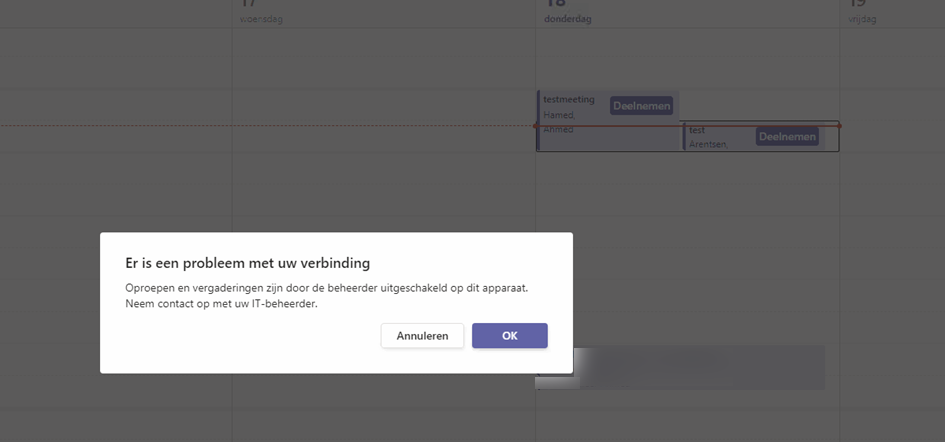
- Joining meetings results in an error that the policy prevents this
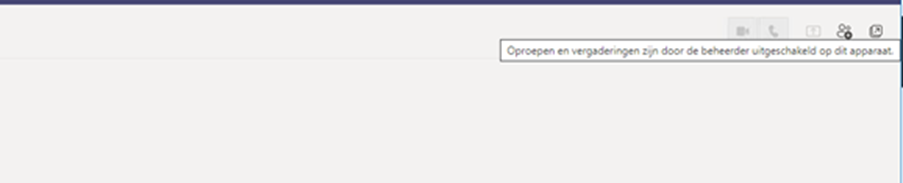
Thanks to James Rankin for his articles on how to optimize Teams in Citrix!
- Part 1 – Installing the damned thing
- Part 2 – Default settings and JSON wrangling
- Part 3 – 18 tips for optimizing performance
Based on these articles we did the following
1. Remove autorun
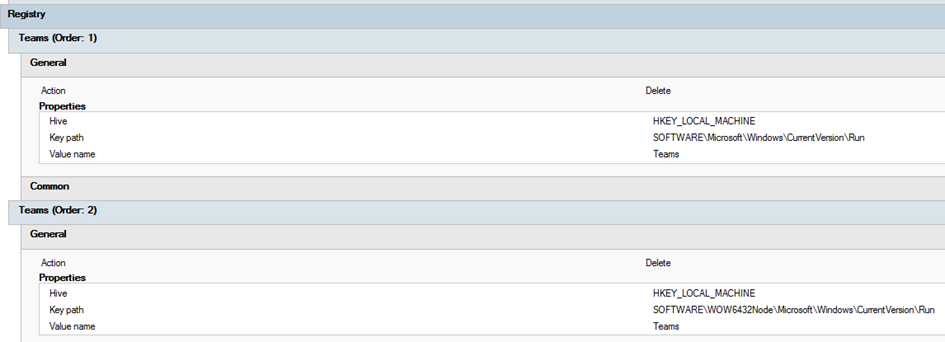
2. Remove the default shortcut
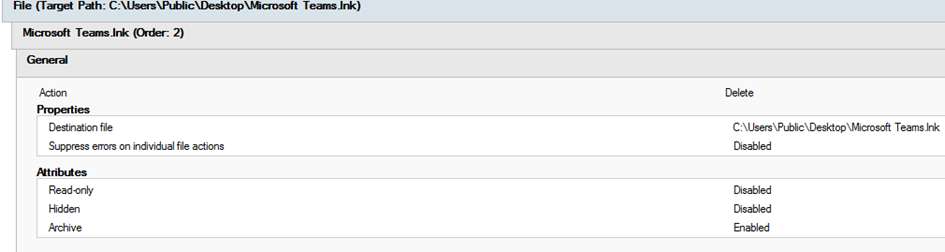
3. Set the default JSON
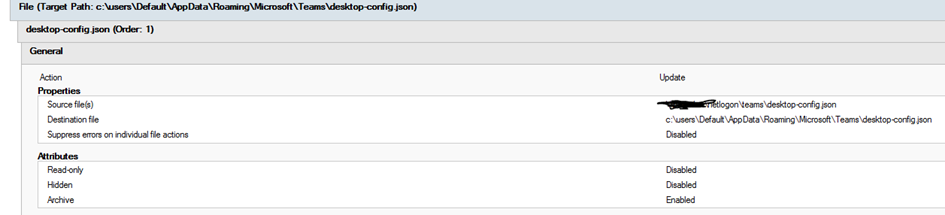
{
   "appPreferenceSettings": {
      "runningOnClose": true,
      "disableGpu": true,
      "callingMWEnabledPreferenceKey": false
   },
   "theme": "default"
}
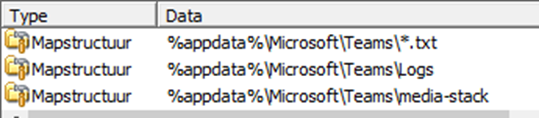
4. Set the following Ivanti Workspace user settings

5. With the following exceptions for %appdata%\Microsoft\Teams